
Guests always ask for the Wi-Fi password, and long passwords are hard to read out and easy to mistype. Android has a simple built-in solution: share your Wi-Fi as a QR code. The other person scans it with their camera and connects instantly, without ever typing the password. This guide shows how to share, how to scan and how to keep your network safe.
Key takeaways
- Open your Wi-Fi network details and tap Share to show a QR code.
- The other phone scans it with the camera or Google Lens and connects.
- Android usually asks for your PIN or fingerprint before showing the code.
- Use a separate guest network on your router for visitors when possible.
What this guide covers
- Share Wi-Fi as a QR code
- Scan a Wi-Fi QR code
- Nearby Share and other options
- See your saved Wi-Fi password
- Keep your Wi-Fi safe when sharing
- FAQs
Share Wi-Fi as a QR code
- Open Settings > Network & internet > Internet (on Samsung: Settings > Connections > Wi-Fi).
- Tap the gear icon next to the network you are connected to.
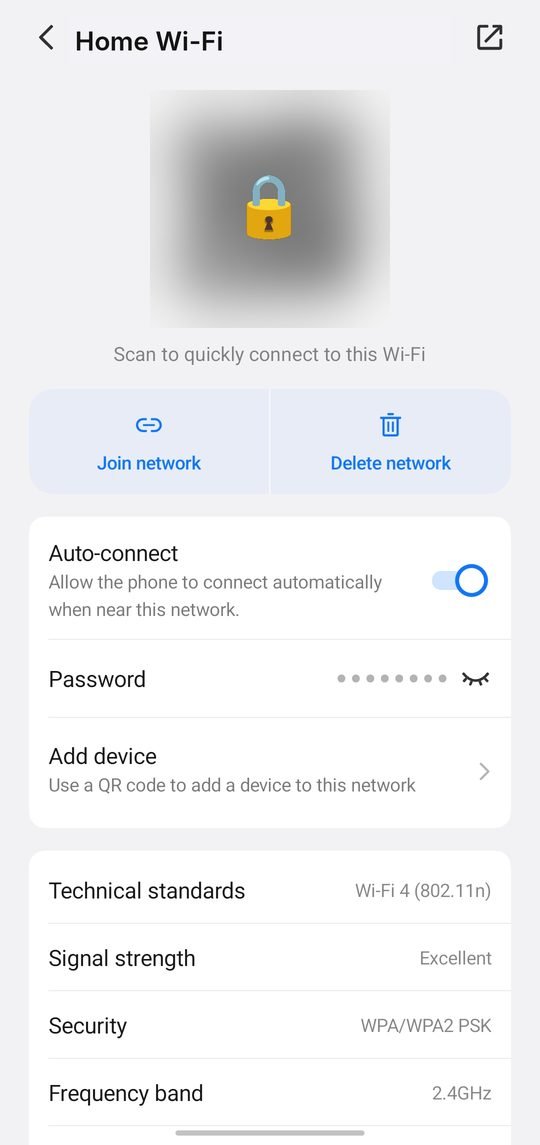
- Tap Share (on Samsung, the QR code button at the bottom).
- Confirm with your PIN, pattern or fingerprint.
- Show the QR code to the other person.
On many phones the password is also printed under the QR code, which is handy if the other device cannot scan codes.
Scan a Wi-Fi QR code
| Device | How to scan |
|---|---|
| Most Android phones | Open the Camera and point it at the code, then tap the Wi-Fi suggestion |
| Android without camera scanning | Use Google Lens, or tap the QR icon on the Wi-Fi settings page |
| iPhone | Open the Camera, point at the code and tap “Join network” |
| Laptop | Type the password shown under the code |
Nearby Share and other options
Some Android phones also offer Nearby or Quick Share on the same Share screen, which can send the Wi-Fi details directly to a nearby Android phone. Options and names vary by brand and Android version, so the QR code remains the most reliable method across all devices.
See your saved Wi-Fi password
Forgot your own password? On recent Android versions, the Share screen shows it under the QR code after you confirm your screen lock. You can also find it on the sticker on your router or in the router’s settings page.
Keep your Wi-Fi safe when sharing
- Create a guest network in your router settings for visitors, so they cannot see your other devices.
- Change the main password from time to time, especially if many people have used it.
- Use WPA2 or WPA3 security in the router, never an open network.
- Do not post photos of your Wi-Fi QR code online; anyone who scans it can connect.
- Check the router’s connected devices list and remove ones you do not recognise.
Tip: Print the guest network QR code and keep it near the entrance or reception desk. Visitors can connect themselves without asking.
Having trouble after connecting? Read our guide on fixing Wi-Fi connected but no internet.
FAQs
Is sharing Wi-Fi by QR code safe?
Yes, as long as you only show it to people you trust. The code contains the password, so treat it like the password itself.
Why does my phone ask for a fingerprint before sharing?
To stop someone else from viewing your Wi-Fi password if they pick up your unlocked phone.
Can I share mobile data the same way?
Mobile data is shared through Hotspot. Many phones can also show a QR code for the hotspot in its settings.
Sources: Android Help. Menu names can differ slightly between phone brands and Android versions.