
Do you pick up your phone “for a minute” and look up an hour later? You are not alone. Android includes a free set of tools called Digital Wellbeing that shows how you use your phone and helps you cut back where you want to. This guide explains each tool, how to set it up and how to use it without missing important calls or messages.
Key takeaways
- Find the tools in Settings > Digital Wellbeing & parental controls.
- The dashboard shows screen time, unlocks and notifications per app.
- App timers pause an app after a daily limit.
- Bedtime mode and Focus mode reduce distractions at set times.
What this guide covers
- See where your time goes
- Set app timers
- Use Bedtime mode
- Use Focus mode
- Tame notifications
- A simple 7-day plan
- FAQs
See where your time goes
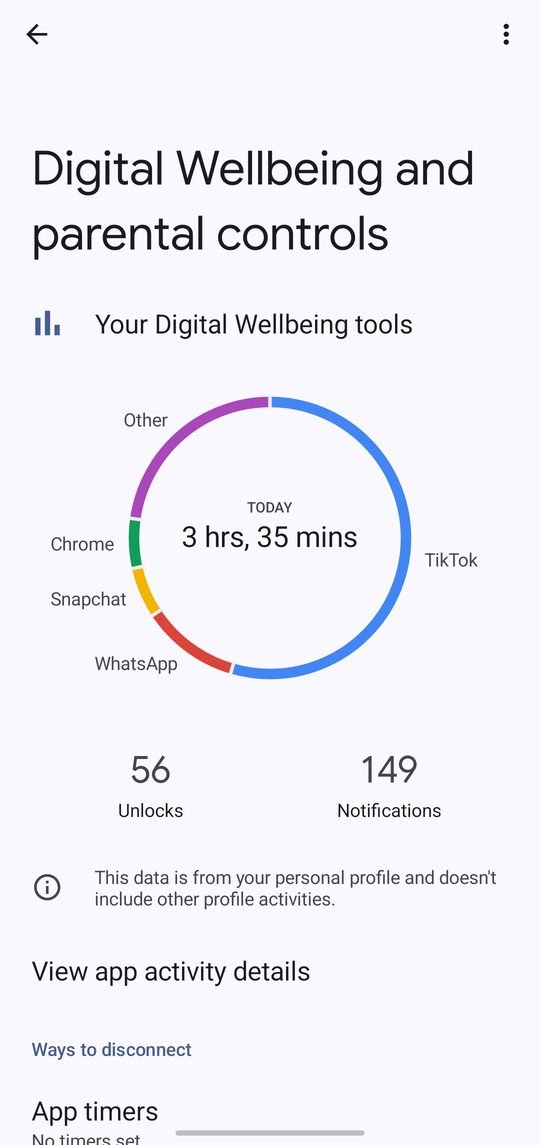
Open Settings > Digital Wellbeing & parental controls. The chart at the top shows today’s screen time, how many times you unlocked your phone and how many notifications you received. Tap the chart to see a breakdown by app and by day.
Most people are surprised by the results. Before changing anything, simply watch the numbers for a few days. It is the fastest way to see which apps take more time than you would like.
Set app timers
- In Digital Wellbeing, tap Dashboard.
- Find the app you want to limit and tap the timer (hourglass) icon.
- Choose a daily limit, for example 30 minutes, and tap OK.
When the limit is reached, the app pauses and its icon turns grey for the rest of the day. Timers reset at midnight. You can remove or change a timer at any time, so they work as a gentle reminder rather than a hard lock.
Tip: Start with limits only for one or two apps that take most of your time, such as short-video or social apps. Too many limits at once are easy to ignore.
Use Bedtime mode
Bedtime mode helps you wind down at night. You can schedule it to start and end at set times, or when your phone is charging at bedtime. Depending on your phone, it can:
- Turn the screen to grayscale, which makes apps less attractive.
- Turn on Do Not Disturb to silence calls and notifications.
- Dim the wallpaper and switch to dark theme.
Do Not Disturb lets you allow calls from starred contacts or repeat callers, so family can still reach you in an emergency.
Use Focus mode
Focus mode pauses the apps you choose, such as social media or games, while you study or work. Pick the distracting apps once, then turn Focus mode on from Digital Wellbeing or Quick Settings whenever you need to concentrate. You can also schedule it, for example on weekdays from 9 am to 1 pm. If you really need an app, you can take a short break.
Tame notifications
| Action | Where | Effect |
|---|---|---|
| Turn off notifications for an app | Settings > Notifications > App notifications | No more alerts from that app |
| Silence some notification types | App info > Notifications | Keep important alerts, mute the rest |
| Use Do Not Disturb | Quick Settings | Silence alerts for a period |
| Check notification count | Digital Wellbeing dashboard | See which apps interrupt most |
A simple 7-day plan
- Days 1–2: just check the dashboard each evening.
- Day 3: set a timer for your most-used app.
- Day 4: turn off notifications for apps that do not need them.
- Day 5: schedule Bedtime mode.
- Days 6–7: use Focus mode during work or study and compare your screen time with day 1.
Settings and menu names can differ between phone brands; Samsung, for example, lists these tools under Settings > Digital Wellbeing and parental controls with its own design. For children’s phones, Google Family Link offers parental controls in addition to these tools.
FAQs
Does Digital Wellbeing use a lot of battery?
No. It records usage in the background with very little effect on battery life.
Can I hide Digital Wellbeing data?
You can turn off usage access for Digital Wellbeing in its settings, but then the dashboard stops showing data.
Will app timers block calls?
No. Timers only pause the apps you choose; phone calls are not affected.
Sources: Android Help: Manage how you spend time on your Android phone with Digital Wellbeing. Menu names can differ slightly between phone brands and Android versions.