

A “Storage full” warning is one of the most common Android problems. When storage runs low, your phone slows down, apps fail to update and the camera may refuse to save photos. The good news: you can usually free several gigabytes in a few minutes, without deleting anything you care about. This guide walks you through the safest methods, in the right order.
Key takeaways
- Start by checking what is using your storage in Settings.
- Use Android’s built-in Free up space and Smart Storage tools first.
- Remove backed-up photos, old downloads and unused apps.
- Clear app cache safely, but think twice before clearing app storage.
What this guide covers
- Check what is using your storage
- Use the built-in cleanup tools
- Free space from photos and videos
- Remove unused apps
- Clear cache the safe way
- Delete downloads and offline files
- Habits that keep storage free
- FAQs
1. Check what is using your storage
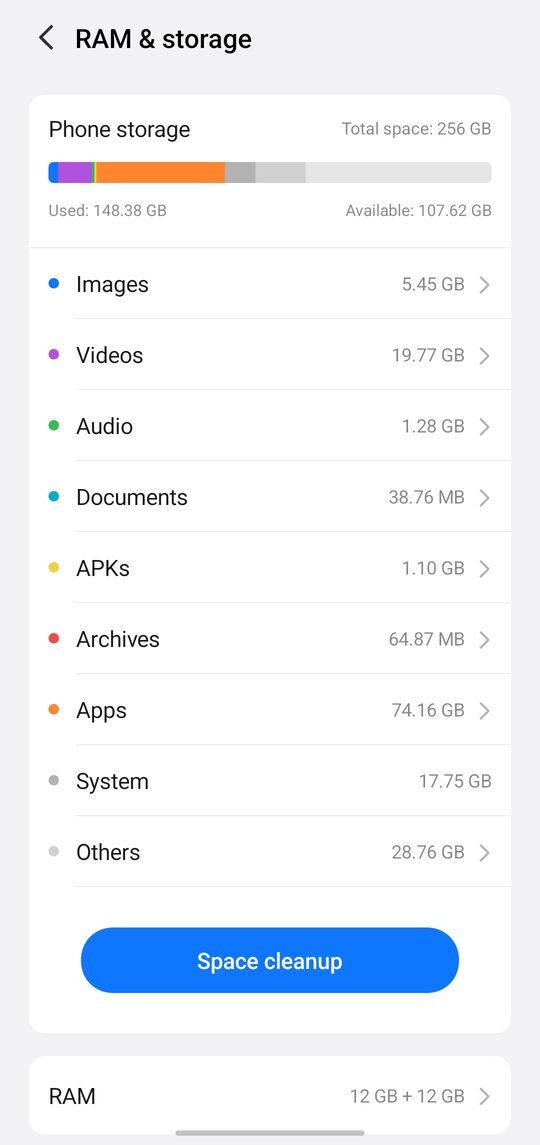
Before deleting anything, find out where your space is going. Open Settings > Storage. Android shows a breakdown by category, such as Apps, Images, Videos, Audio, Documents and System. Tap a category to see exactly which items are largest.
Most people discover that photos, videos and a handful of large apps (often games, social media and streaming apps) take up most of the space. Knowing this lets you focus on the cleanup that gives the biggest result.
Storage vs memory: storage holds your files, photos and apps. Memory (RAM) runs apps while you use them. Closing apps from the recent apps screen does not free storage, and Google notes it is usually unnecessary.
2. Use the built-in cleanup tools
Newer Android versions include tools that do much of the work for you. According to Android Help, you can:
- Go to Settings > Storage > Free up space, scroll to a category, tap Select files (or Browse), choose files and tap Move files to Trash.
- Turn on Smart Storage from the Free up space menu so Android automatically removes backed-up photos and videos when storage runs low.
The Files by Google app also shows cleanup suggestions such as duplicate files, large files and junk files, and lets you review each item before deleting it.
3. Free space from photos and videos
Photos and videos are usually the biggest storage users. If you use Google Photos with backup turned on, your photos are safely stored in your Google Account. You can then delete the copies on your phone and still see them in the Photos app whenever you are online.
- Open Google Photos and confirm backup is complete.
- Use the Free up space option in Google Photos to remove device copies of backed-up items.
- Delete blurry shots, screenshots you no longer need and duplicate forwards from messaging apps.
- Record videos at 1080p instead of 4K if you do not need the extra detail; 4K files are several times larger.
Before deleting: make sure photos are fully backed up. Items that are not backed up are lost permanently once deleted and emptied from Trash.
4. Remove apps you no longer use
Unused apps take up space for the app itself and for the data they store. Go to Settings > Apps, sort by size if your phone allows it, and uninstall apps you have not opened in months. As Android Help points out, you can reinstall apps you paid for later without paying again.
Google Play can also archive apps you rarely use: it removes most of the app but keeps your data, so the app can be restored quickly when you need it again.
5. Clear cache the safe way
| Option | What it removes | Is it safe? |
|---|---|---|
| Clear cache | Temporary files the app can rebuild | Yes, usually safe |
| Clear storage / data | All app data, settings and sign-ins | Permanent, use with care |
To clear an app’s cache, open Settings > Apps, choose the app, tap Storage & cache, then Clear cache. Messaging, browser and social apps often build up large caches. Google recommends deleting data inside the app first, because clearing storage is permanent.
6. Delete downloads and offline files
- Open the Downloads folder in your file manager and delete old PDFs, installers and videos.
- Remove offline songs, podcasts and movies from music and video apps once you have finished with them.
- Check messaging apps for large media folders and delete old videos and voice notes.
- Move files you want to keep to a computer or cloud storage, then delete them from the phone.
7. Habits that keep storage free
- Turn on photo backup and Smart Storage once, and let them work in the background.
- Stop messaging apps from auto-downloading every photo and video.
- Review your largest apps every few months.
- Keep at least 10–15% of storage free so updates and the camera work smoothly.
FAQs
Why does my phone say storage is full after I delete photos?
Deleted items often go to Trash first. Empty the Trash in your gallery or Google Photos to free the space.
Is it safe to delete the cache?
Yes. Cache files are temporary and the app rebuilds them when needed. Clearing an app’s storage is different: it erases the app’s data.
Does closing apps free storage?
No. Closing apps only affects memory (RAM), not storage, and is usually unnecessary.
Sources: Android Help: Free up space. Menu names can differ slightly between phone brands and Android versions.