
WhatsApp chats hold family photos, voice notes and important information. If you change phones or reinstall WhatsApp without a backup, those chats can be gone for good. On Android, WhatsApp backs up chats to your Google Account. This guide explains how to set up automatic backups, how to restore them on a new phone, and how to fix the most common backup problems.
Key takeaways
- WhatsApp backups on Android are stored in your Google Account.
- Set up in WhatsApp > Settings > Chats > Chat backup.
- Restore happens when you reinstall WhatsApp with the same phone number and Google Account.
- You can turn on end-to-end encrypted backup protected by a password or key.
What this guide covers
- How WhatsApp backup works
- Set up automatic backup
- Restore chats on a new phone
- Encrypted backups
- Fix common backup problems
- FAQs
How WhatsApp backup works
WhatsApp does not keep your chat history on its servers. Instead, on Android, it saves a copy of your chats and media to your Google Account on a schedule you choose. When you install WhatsApp on a new phone and verify the same number, it finds that backup and offers to restore it.
| Item | Included in backup? |
|---|---|
| Text messages | Yes |
| Photos and voice notes | Yes |
| Videos | Optional (you choose) |
| Call history | Yes, as part of chats |
| Messages received after the last backup | No, until the next backup |
Set up automatic backup
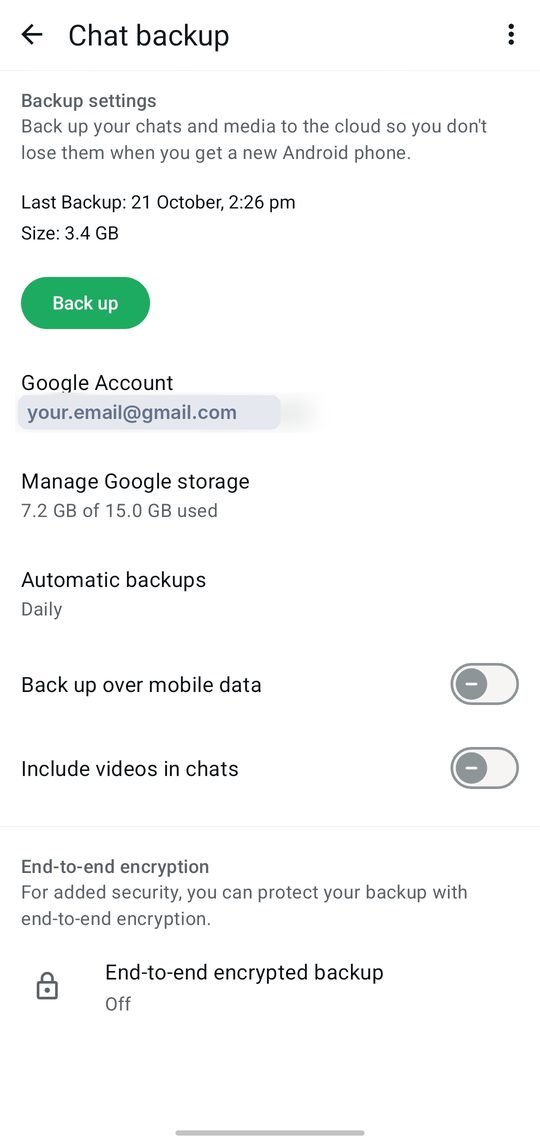
- Open WhatsApp and tap the three dots > Settings.
- Tap Chats > Chat backup.
- Choose the Google Account to back up to.
- Set Back up to Google Account (frequency) to Daily.
- Choose whether to include videos and whether to back up over mobile data.
- Tap Back up to create the first backup now.
Tip: Leave “include videos” off if your Google storage is limited. Videos are usually the largest part of a backup.
Restore chats on a new phone
- On the new phone, add the same Google Account that holds the backup.
- Install WhatsApp from Google Play.
- Verify your same phone number.
- When WhatsApp finds the backup, tap Restore.
- Wait for the restore to finish, then tap Next. Media keeps downloading in the background.
Important: restore only works with the same phone number and Google Account used for the backup. Back up on the old phone right before switching to include your latest messages.
Encrypted backups
WhatsApp offers end-to-end encrypted backups. When turned on (in Chat backup > End-to-end encrypted backup), nobody, including WhatsApp or Google, can read your backup. You protect it with a password or a 64-digit key. Store this carefully: if you lose it, WhatsApp cannot help you recover the backup.
Fix common backup problems
| Problem | Try this |
|---|---|
| Backup stuck at 0% or not finishing | Use stable Wi-Fi, keep the phone charging, update WhatsApp |
| “Google storage full” | Free space in Google Drive/Photos or exclude videos |
| Backup not found when restoring | Check you are using the same number and Google Account |
| Old messages missing after restore | They were received after the last backup |
| Encrypted backup password forgotten | The backup cannot be restored; start a new backup |
For backing up the rest of your phone, see how to back up your Android phone.
FAQs
How often should WhatsApp back up?
Daily is best. It runs automatically, usually overnight when the phone is idle.
Does the backup use my Google storage?
WhatsApp backup storage policies can change, so check the current details in WhatsApp’s Help Center and your Google storage page.
Can I move chats from Android to iPhone?
Yes, WhatsApp supports chat transfer between Android and iPhone using its official transfer steps during setup.
Sources: WhatsApp Help Center. Menu names can differ slightly between phone brands and Android versions.