
Is your Android battery running out before the end of the day? Battery drain usually comes from a few specific causes: a bright screen, apps working in the background, weak network signal or an outdated system. This guide shows you how to find the cause and fix it, using settings that are already on your phone.
Key takeaways
- Check Settings > Battery to see which apps use the most power.
- Lower screen brightness and timeout: the display is often the biggest user.
- Restrict heavy apps in the background and turn on Adaptive Battery.
- Restart and update your phone if drain started suddenly.
What this guide covers
- Find out what is draining the battery
- Fix the screen settings
- Control apps in the background
- Use Battery Saver wisely
- Connections and location
- If the drain continues
- Charging and heat
- FAQs
1. Find out what is draining the battery
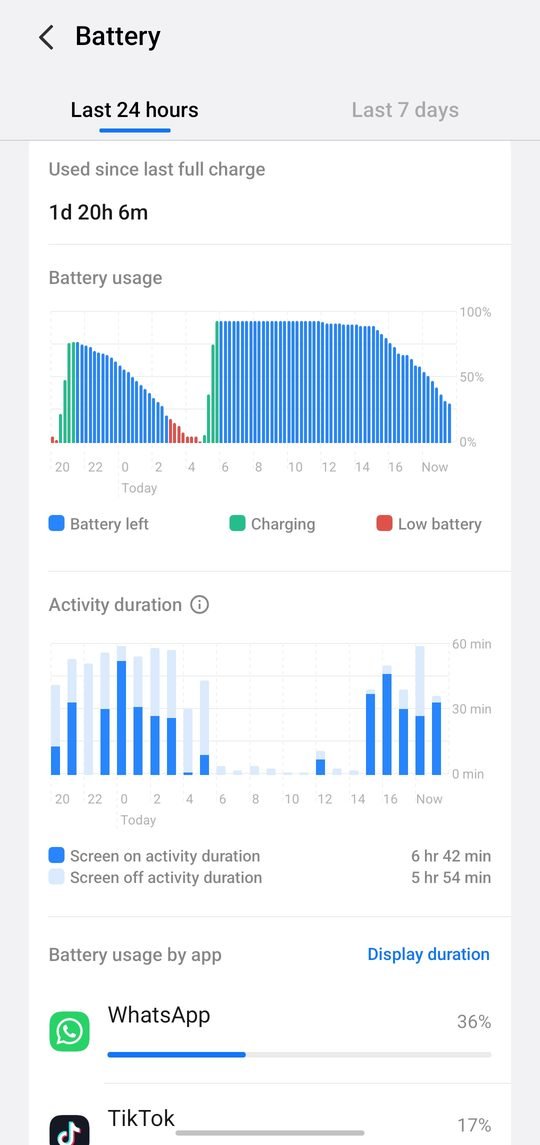
Open Settings > Battery and look for Battery usage. This shows which apps and system parts used the most power since the last full charge. If one app uses far more than the others, especially one you barely opened, it is likely the cause.
Tip: Social media, video streaming, games and navigation apps naturally use more battery. Focus on apps that use a lot of power in the background.
2. Fix the screen settings
The display is usually the single biggest battery user. Google recommends these changes:
- Lower the brightness or turn on Adaptive brightness.
- Shorten the Screen timeout to 30 seconds or 1 minute.
- Turn on Dark theme; on OLED screens it saves noticeable power.
- Turn off keyboard sounds and vibration.
3. Control apps in the background
Some apps keep syncing, tracking location or checking for updates even when you are not using them. To limit this:
- Turn on Adaptive Battery in Settings > Battery. Android learns which apps you use and limits the rest.
- Open a heavy app in Settings > Apps, tap Battery (or App battery usage) and choose Restricted or Optimised.
- Remove accounts you no longer use, since each account can sync in the background.
- Uninstall apps you do not need.
Be careful when restricting messaging apps, because restricted apps may deliver notifications late.
4. Use Battery Saver wisely
Battery Saver limits background activity, visual effects and some network use. Open Settings > Battery > Battery Saver to turn it on, set a schedule, or choose when it turns off. Google notes that it can delay some apps and network connections, so use it when you need the battery to last, not all the time.
5. Connections and location
| Setting | Battery effect | What to do |
|---|---|---|
| Weak mobile signal | Phone works harder to stay connected | Use Wi-Fi when available |
| Bluetooth | Small, constant use | Turn off when not needed |
| Location / GPS | High during navigation | Allow only while using the app |
| Hotspot | Very high | Turn off after use |
| Video streaming on mobile data | High | Download over Wi-Fi first |
6. If the drain continues
If battery life suddenly got worse, try these steps in order, as suggested by Android Help:
- Restart your phone. This stops apps that may be stuck in the background.
- Update Android: Settings > System > Software update.
- Update apps: Play Store > profile icon > Manage apps & device.
- Contact the manufacturer if the problem continues; the battery may be worn out.
- Factory reset only as a last resort, after a full backup, because it erases everything.
7. Charging and heat
Heat damages batteries and makes them drain faster. Use the charger that came with your phone or a certified one, avoid charging under a pillow or in direct sun, and remove thick cases if the phone gets hot while charging. Battery capacity naturally declines over years of use, so an older phone may simply need a battery replacement from an authorised service centre.
FAQs
Does closing apps save battery?
Usually not. Android manages apps in memory efficiently, and reopening closed apps can use more power.
Is it bad to charge my phone overnight?
Modern phones manage charging to protect the battery. Many also offer an adaptive or optimised charging option.
Why does my battery drain fast after an update?
Phones often re-index files and optimise apps after an update. Battery life usually returns to normal within a few days.
Sources: Android Help: Battery drains quickly. Menu names can differ slightly between phone brands and Android versions.