
Google Play Protect is the security system built into every Android phone with Google Play. It quietly checks apps for harmful behaviour, warns you about risky apps and can even remove dangerous ones. Most people never think about it, but knowing how it works helps you keep your phone and personal data safe. Here is a clear, practical explanation.
Key takeaways
- Play Protect is on by default and Google recommends keeping it on.
- It checks apps before you download from Play and scans your phone regularly.
- It can warn you, disable a harmful app or remove it automatically.
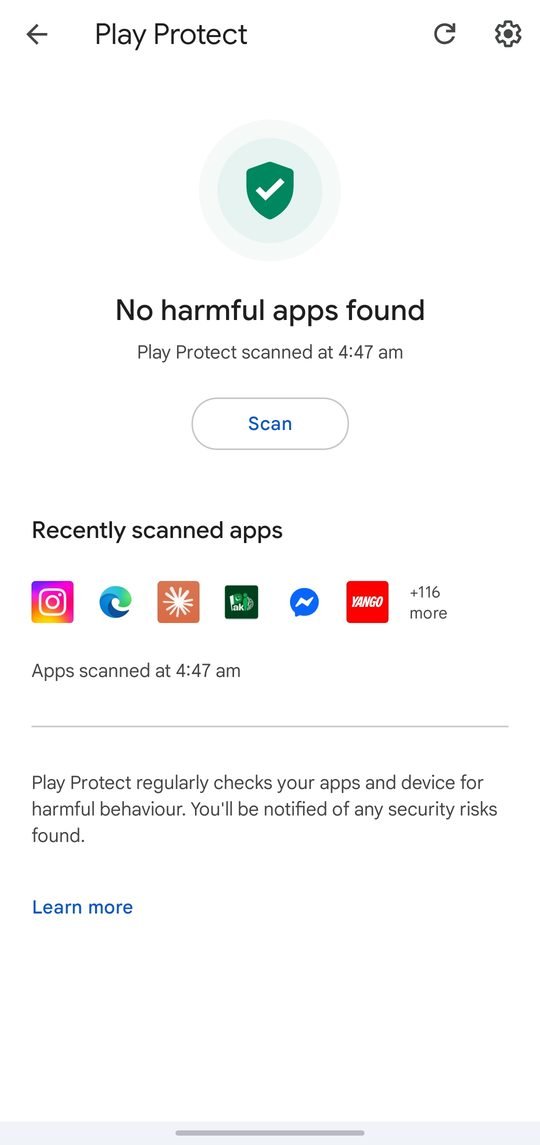
- You can check its status in the Play Store under Play Protect.
What this guide covers
- What Play Protect does
- How to check that it is on
- What happens when it finds a harmful app
- Apps from outside Google Play
- Play Protect vs device certification
- Extra tips for staying safe
- FAQs
What Google Play Protect does
According to Google Play Help, Play Protect:
- Runs a safety check on apps from the Google Play Store before you download them.
- Checks your device for potentially harmful apps from other sources.
- Warns you about apps that hide or misrepresent important information.
- Sends privacy alerts about apps that try to get access to your personal information.
- On Android 6.0 to 10, may reset permissions for apps you have not used in a while.
How to check that Play Protect is on
- Open the Google Play Store app.
- Tap your profile icon at the top right.
- Tap Play Protect, then the Settings icon.
- Make sure Scan apps with Play Protect is turned on.
The Play Protect screen also shows when your phone was last scanned and lets you start a scan manually. It is a good idea to open it once in a while, especially after installing several new apps.
Good to know: Google Play Protect is turned on by default. Google recommends that you always keep it on.
What happens when it finds a harmful app
If Play Protect finds a potentially harmful app, it may:
- Send you a notification. To remove the app, tap the notification and then Uninstall.
- Disable the app until you uninstall it.
- Remove the app automatically. In this case you will usually see a notification explaining what happened.
Take these warnings seriously. If you are unsure about an app, uninstall it and look for a well-known alternative on Google Play with a long history of good reviews.
Apps from outside Google Play
Play Protect also scans apps installed from other sources. For an app it has not seen before, it may ask to send the app to Google for a closer check. Google also says Play Protect may block the installation of unverified apps that request sensitive permissions often misused to access financial information, such as reading SMS messages or notifications.
Our advice: install apps from Google Play or your phone maker’s official store whenever possible. Apps shared through links, messages or unknown websites carry much higher risk.
Play Protect vs device certification
These are two different things. Device certification confirms that your phone runs a Google-approved version of Android with Play services. To check it, open the Play Store, tap your profile icon, then Settings > About and look for Play Protect certification. If you see “Device is not certified”, Google recommends using the Fix device issue button rather than troubleshooting Play Protect.
Extra tips for staying safe
| Habit | Why it helps |
|---|---|
| Keep Android updated | Security patches fix known weaknesses |
| Update apps regularly | Developers patch bugs and security issues |
| Review app permissions | Limits what each app can access |
| Read reviews before installing | Spot problem apps early |
| Use a screen lock | Protects your data if the phone is lost |
For a deeper look at permissions, read our guide on how to manage app permissions on Android.
FAQs
Does Play Protect slow down my phone?
No. Scans run in the background and are designed to have little effect on performance.
Do I still need an antivirus app?
For most people, Play Protect plus safe habits (official app stores, updates, careful permissions) is enough.
Can I turn Play Protect off?
Yes, in its settings, but Google recommends keeping it on at all times.
Sources: Google Play Help: Play Protect. Menu names can differ slightly between phone brands and Android versions.